
Video run-through of the Extension
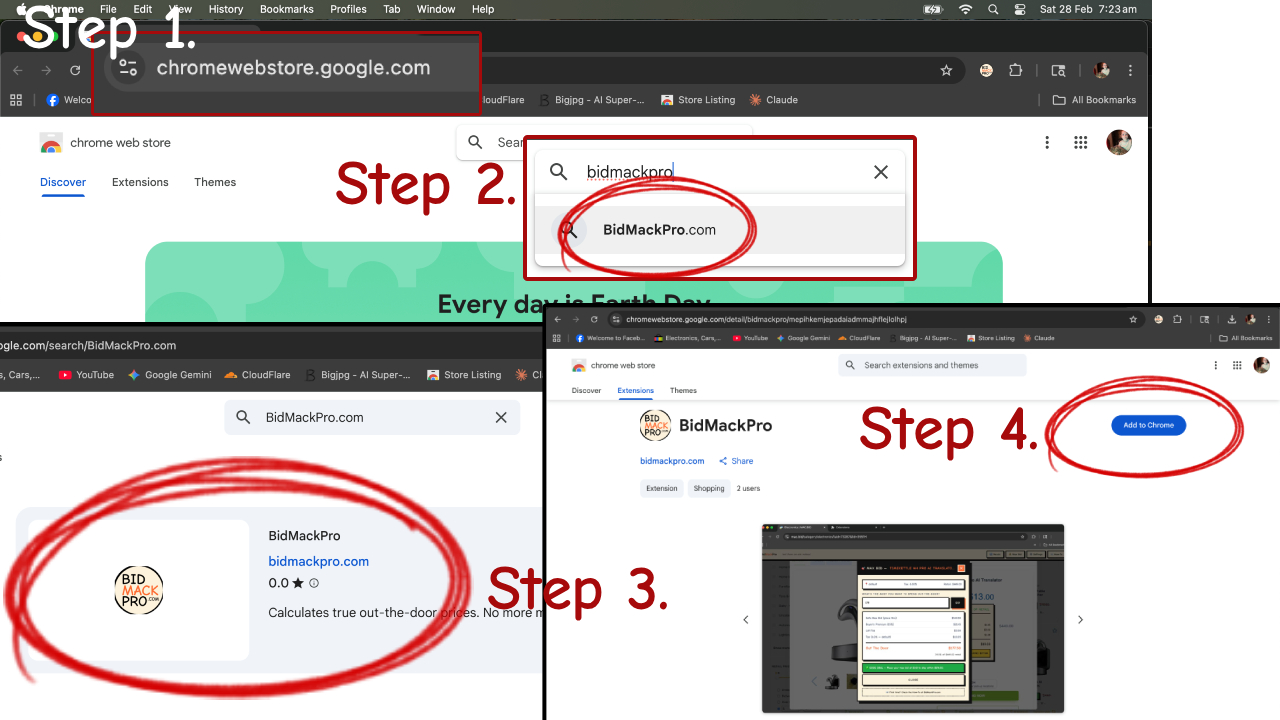
Install the Extension
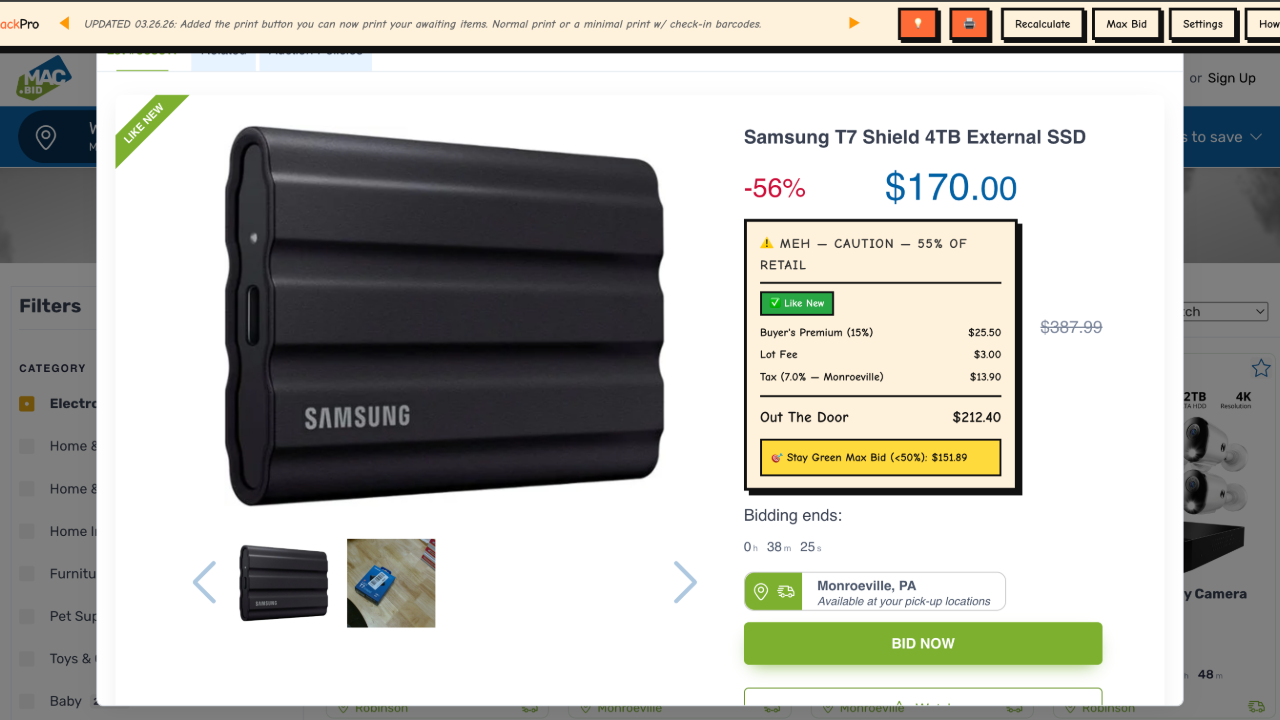
Open an Auction
Set Your Max Budget
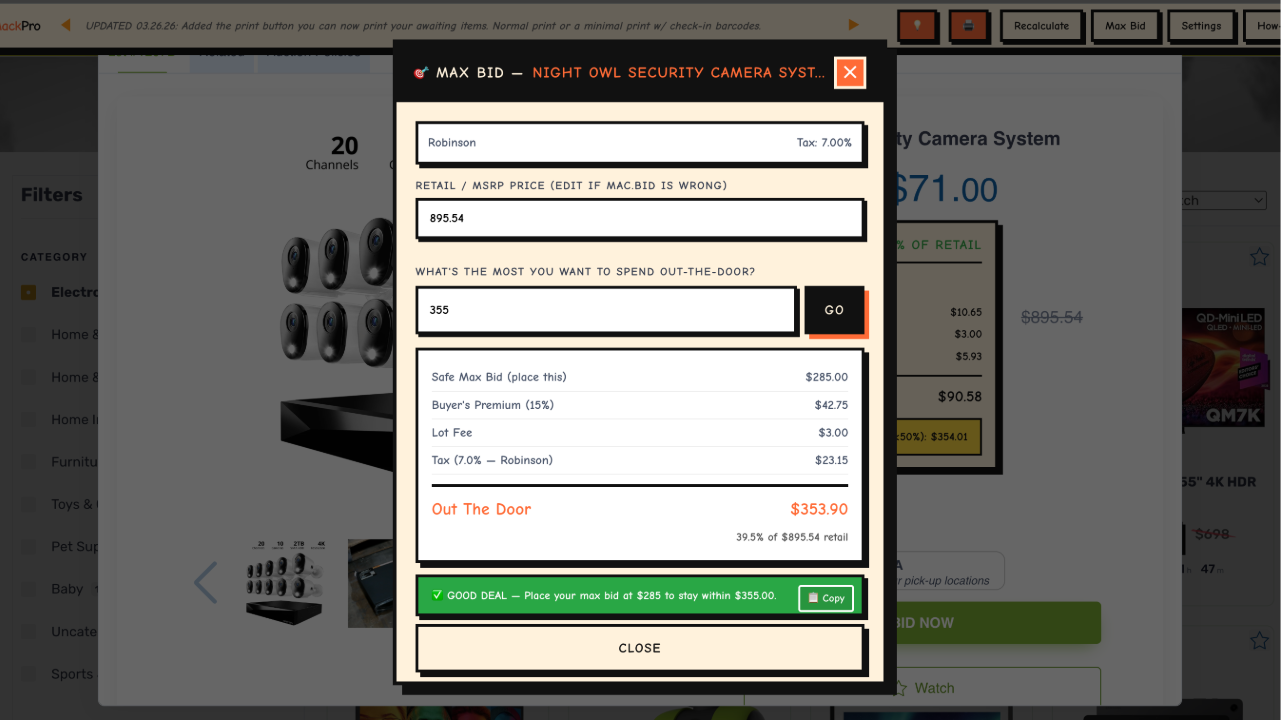
After opening an auction in step 2, click Max Bid on your BidMackPro menu bar.
The Max Bid menu will appear as shown in the screenshot. Fill in the fields and either copy the calculated max bid to paste it immediately, or save it for the final 2 minutes of the auction.
Print Awaiting Items
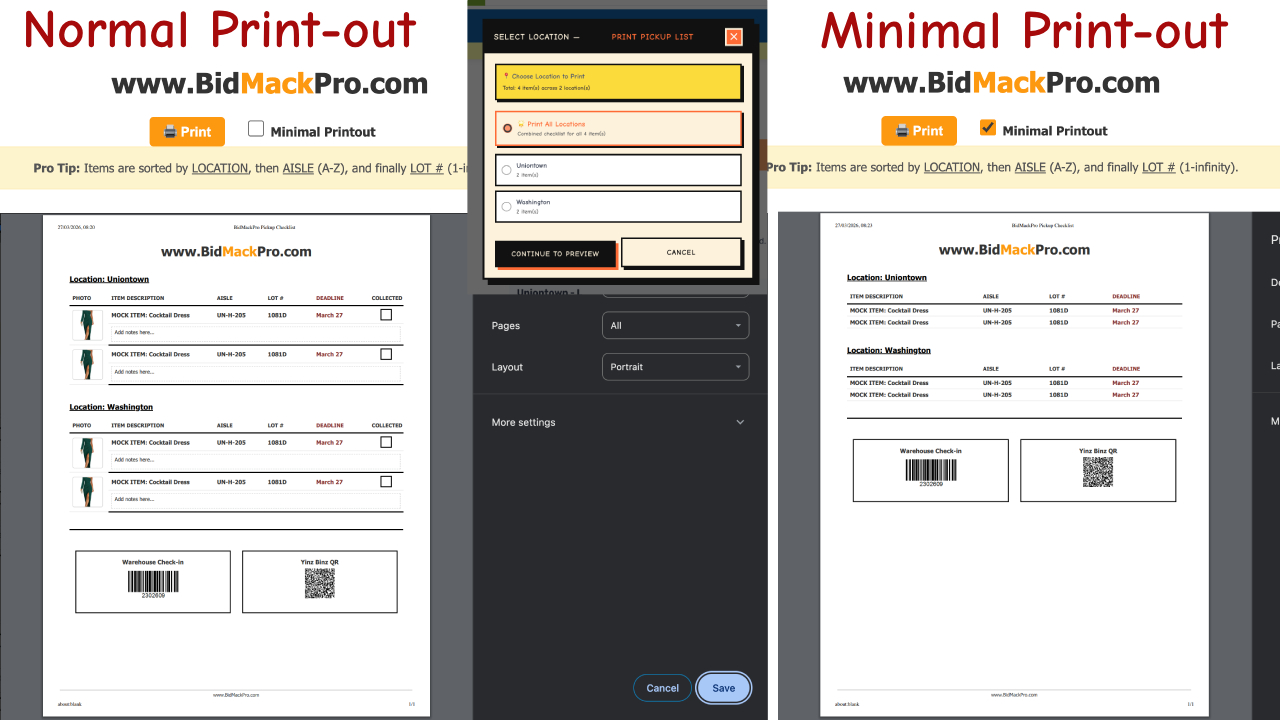
Open your awaiting items at mac.bid/active.
Click the Print icon on the BidMackPro menu bar to open the print options pop-up.
You can choose to print all items at once—perfect for visiting multiple locations in one day—or filter to print one location at a time.
A new Print Preview tab will open. From here, you can select the Minimal checkbox to remove images, notes, and collection options. This compacts your list into an eco-friendly version that saves paper.
Click the Print button to open your system print settings and adjust them to your preference.
Bid With Confidence

This is a tool, and it only works if you have some self-control. Remember: 95%+ of the time, these items are not new. Even the "Like New" items are rarely brand new, and they come with no warranty if something goes wrong.
STOP OVERPAYING. Fees and addons add up fast. Don't be the person who pays more on Mac.Bid than they would for a warrantied item at a retail store. Don't make me roll up a newspaper and bop you on the nose!
Treat every item as if you're buying from Facebook Marketplace. These are large corporations moving product as fast as possible; many items aren't inspected as thoroughly as they should be.
Mac.Bid isn't a scam—it's incredibly useful—but you have to be smart. You work hard for your money. Have a price in mind and stick to it.
Use BidMackPro to help YOU. If you use the percentage system, you will save money. If you don't win a bid, so be it. Move on to the next one.